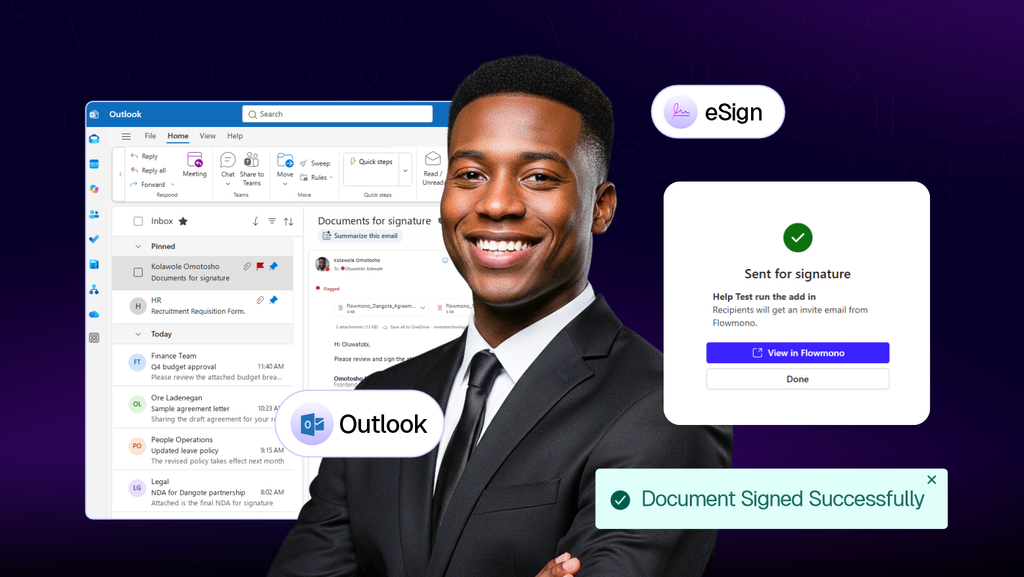
The new Flowmono eSign plugin for Microsoft Outlook turns your inbox into a high-speed document signing workspace. When you open an email with an attachment and click the Flowmono eSign plugin, your attached files load automatically, with the option to add extra documents from your computer up to 25 MB combined. Best of all, the plugin is available to all Flowmono E-Sign users regardless of their subscription plan, bringing instant solo signing, multi-party routing, bulk signing, and queue tracking right inside Outlook.
The Hidden Tax of Leaving Your Inbox to Sign a Document
Think about what happens every time a contract, vendor NDA, budget approval, or offer letter lands in your Outlook inbox.
You read the email, spot the attachment, and immediately hit a wall of manual busywork: download the file to your desktop, open a new browser tab, log into a signing portal, hunt through your Downloads folder to re-upload the exact file you were just looking at, re-type the recipient details already sitting in your email header, and jump back to Outlook to tell everyone it is done.
Those five extra minutes per document quietly snowball into hours of lost productivity, cluttered local folders, and stalled deals. With the launch of the Flowmono eSign plugin for Microsoft Outlook, that entire detour disappears. Your inbox is no longer just where agreements arrive, it is where they get signed, sent, and completed.
Built for Speed: Four Ways to Move Faster Inside Outlook
Once you launch Flowmono eSign from your Outlook ribbon, the plugin detects your email’s attachments automatically and gives you four purpose-built ways to act in seconds:
1. Sign Alone: Need to sign an internal memo, leave form, or vendor agreement yourself? Open the attachment, drop in your signature, and finalize it in seconds, no recipient setup required.
2. Sign with Others: Turn any email attachment into a multi-party signing workflow. Flowmono automatically pulls potential signers from the email’s sender, To, and Cc fields, and pre-fills the agreement name and message straight from your email subject and body.
3. Bulk Sign: Need to send one standardized document, like a policy update or seasonal contract, to dozens of recipients at once? Launch a bulk signing run from a CSV directly from your Outlook sidebar.
4. My Queue: Check what is waiting on you or pending with other signers in real time without switching tabs or digging through sent folders.
Why Teams Love the Flowmono eSign Outlook Plugin
| Feature | What It Does Inside Outlook | Why It Matters |
| One-Click Attachment Sync | Clicking Flowmono eSign automatically pulls the email’s attached document(s) into your signing request. | Zero local downloads and zero risk of uploading the wrong file version. |
| Bundle Extra Files (Up to 25 MB) | Click Add from computer to attach additional supporting documents alongside your email attachment, up to 25 MB combined. | Keep master agreements, schedules, and addenda together in one clean request. |
| Context-Aware Auto-Fill | Automatically pulls recipient contacts from the email thread and pre-populates the agreement title and invite note. | Cuts setup time from minutes to seconds while eliminating email typos. |
| Included on Every Plan | Available to all Flowmono E-Sign users regardless of subscription tier, no paid add-on wall. | Every team member can start signing from Outlook immediately. |
| Seamless Microsoft 365 Sign-In | Sign in with your Microsoft account, Google, LinkedIn, or Flowmono credentials in one click. | Fits naturally into your existing Microsoft 365 daily routine. |
How It Works: 4 Simple Screens from Inbox to Signed
You do not need complex IT setup or training to get started. Here is how fast an attachment goes from your inbox to out for signature:
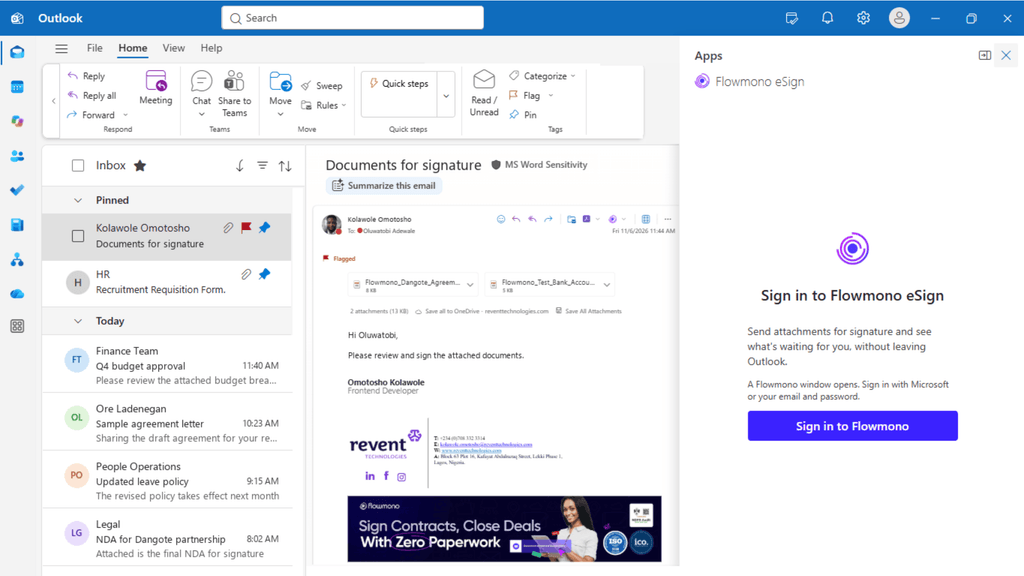
1. Sign In Right Beside Your Email
Open any email with an attachment in Outlook, click Flowmono eSign, and select Sign in to Flowmono in the right-hand panel. Authenticate quickly using your Microsoft login or Flowmono credentials.
Screen 1: Sign in to Flowmono eSign panel
2. Choose How You Want to Sign
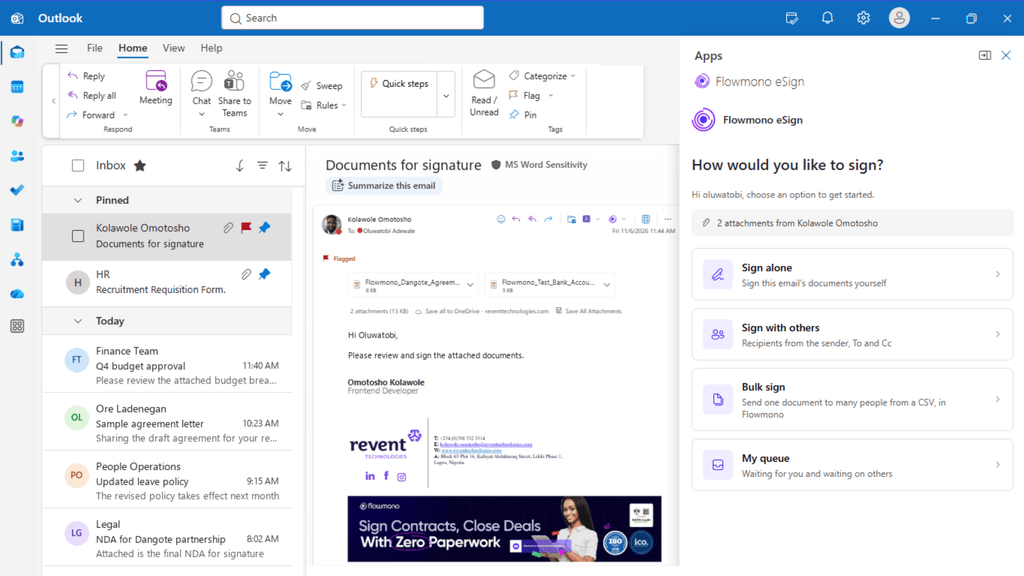
Flowmono immediately recognizes the attachments from your email. Pick Sign alone, Sign with others, Bulk sign, or check My queue directly from the sidebar.
Screen 2: How would you like to sign? options screen
3. Confirm Your Documents & Recipients
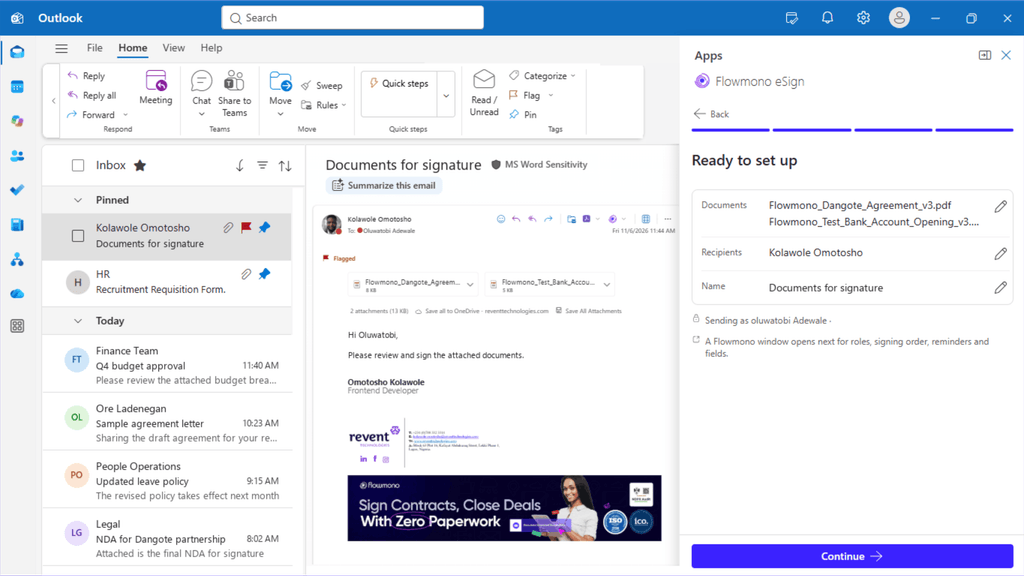
Review your auto-attached files (or add extra files from your computer up to 25 MB total), verify the pre-filled recipients and agreement title, and click Continue to place your signature fields.
Screen 3: Ready to set up confirmation screen
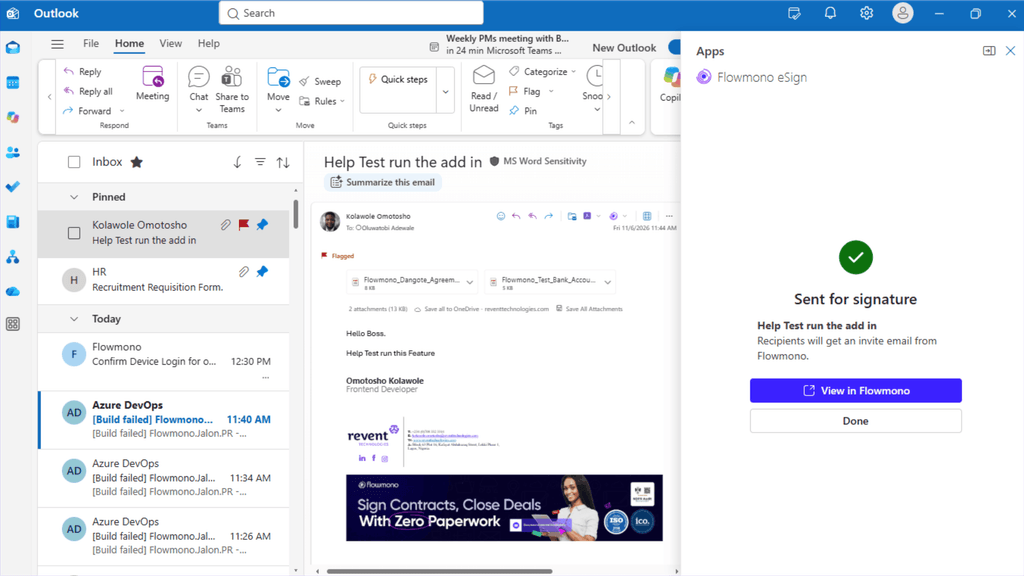
4. Sent & Trackable in Seconds
Once you place your fields and hit send, Outlook displays an instant “Sent for signature” confirmation. Recipients receive their signing link immediately, and you can click View in Flowmono anytime to track progress and access your tamper-evident audit trail.
Screen 4: Sent for signature confirmation screen
Enterprise Security & Compliance Without the Friction
Moving at inbox speed never means compromising on governance or legal validity. Every document sent or signed through the Flowmono eSign Outlook plugin carries Flowmono’s full enterprise security posture:
1. Tamper-Evident Audit Trails: Every view, signer action, timestamp, and signature is permanently logged for effortless internal and regulatory audits.
2. Globally Audited Standards: Flowmono is ISO 27001 and HIPAA certified, backed by SOC 1, SOC 2, and SOC 3 assurance reports, and independently audited by Deloitte. Explore our full compliance framework for Flowmono Security.
3. Built for Your Existing Stack: Flowmono sits cleanly alongside Microsoft Outlook, OneDrive, and SharePoint, keeping your team productive inside the tools they already trust.
Frequently Asked Questions (FAQ)
1. Is the Flowmono eSign Outlook plugin available on my current plan?
Yes. The Flowmono eSign plugin for Outlook is available to all Flowmono E-Sign users regardless of your subscription plan.
2. Do I have to download email attachments before using the plugin?
No. When you open an email containing attachments and click Flowmono eSign, your attached files are pulled into your signing workflow automatically. You can also add additional documents from your device up to a 25 MB combined limit.
3. Can I sign a document myself without sending it to anyone else?
Yes. Simply select Sign alone in the Outlook sidebar to place your signature on an attachment and complete it immediately. Your signed copy is automatically saved under Completed in your Flowmono workspace.
4. Do external recipients need a Flowmono account to sign documents I send from Outlook?
No. Recipients receive an email invite with a secure signing link and can review and sign from any desktop or mobile browser without creating an account.
Ready to Turn Your Inbox into a Closing Machine?
Stop letting important approvals stall between browser tabs and local downloads. Whether you are closing commercial contracts, clearing HR onboarding forms, or signing off on internal budgets, Flowmono eSign for Outlook helps you get it done before you even leave the email thread.
Already using Flowmono? Log in to your Flowmono account or open Outlook to launch the Flowmono eSign plugin today.
Want to see Flowmono in action for your team? Book a 30-minute live demo with our product specialists.
